Complete guide · A to Z
How to use Zylenta Repeat, step by step
Written for people who have never used a tool like this. Follow it from top to bottom and you will send your first reminder in about 20 minutes. Every step has a picture.
Prefer to watch? The same steps in a 7-minute video:
Video not playing? Watch it on YouTube
Before you start
Zylenta Repeat reminds your past carpet-cleaning customers when they are due for their next cleaning. You stay in control: nothing is sent until you approve it.
What you need
- A computer, tablet or phone with internet (a computer is easiest for uploading files).
- An email address you can open, to confirm your account.
- A list of your past customers — a spreadsheet is fine. We’ll turn it into a CSV file in chapter 3.
- Your online booking link (the web page where customers book you).
- Your business mailing address (needed for reminder emails; a PO box is fine).
The four steps at a glance
At the top of every page inside the app you will see four steps. Work through them in order:
- Your business — your name, timezone and links.
- Add customers — upload your customer list.
- Get them ready — record permission and timezone.
- Send reminders — approve a message; emails go out automatically.

1. Create your account
Creating an account is free and no card is needed.
- Go to repeat.zylenta.com and click Start free trial.
- Type your email address and choose a password of at least 12 characters. Tip: a short sentence like blue van cleans carpets is easy to remember. Click Show to check what you typed.
- Tick the box to agree to the Terms and Privacy Policy, then click Create your account.
- Open your email. You will receive “Confirm your Zylenta Repeat account”. Click the link inside. (Check the Spam folder if you don’t see it within a few minutes.)
- Sign in with your email and password. You will land on Your business.
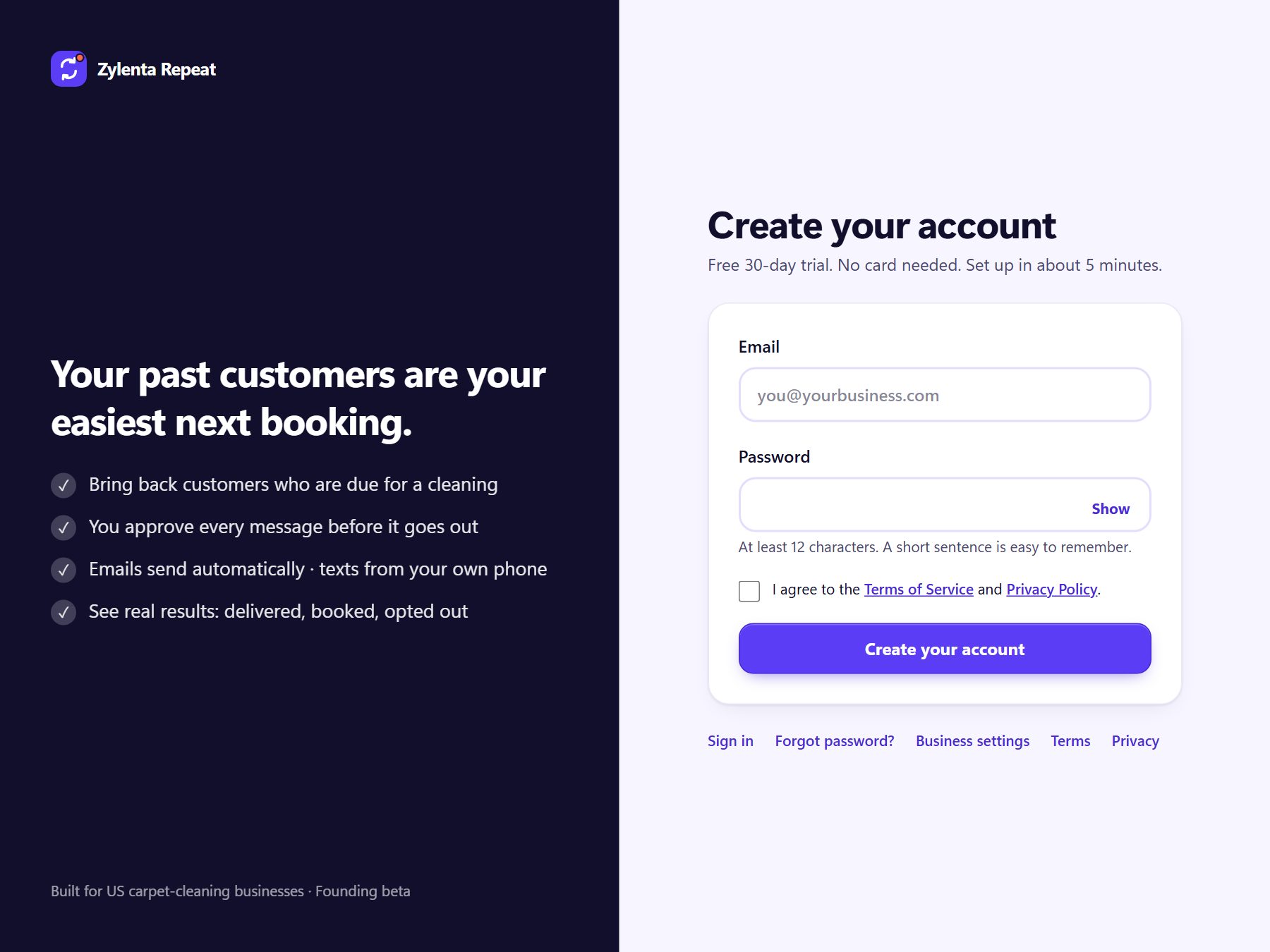
Tip: Forgot your password later? On the sign-in page click Forgot password? and follow the email.
2. Set up your business
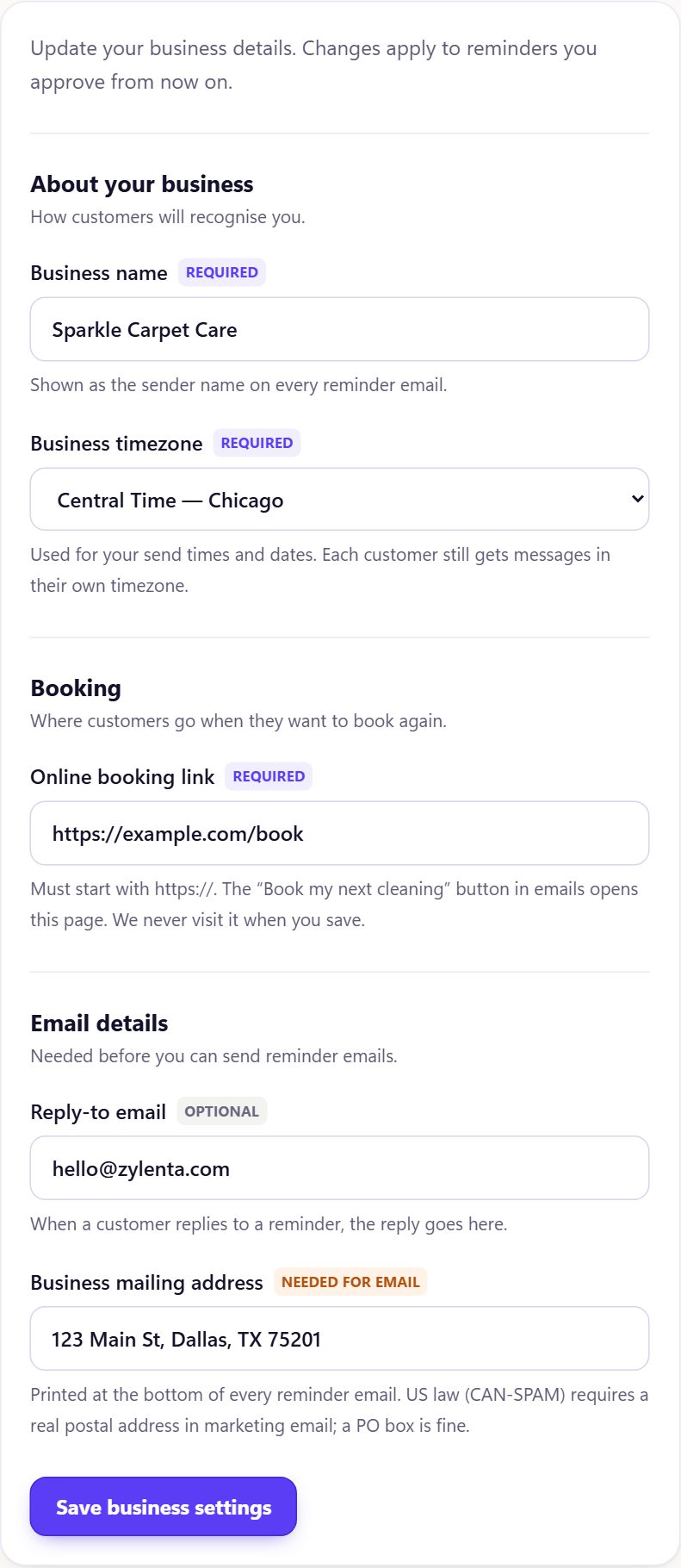
These details appear in every reminder your customers receive.
- Business name — the name customers know you by. It becomes the sender name on emails.
- Business timezone — where your business is. Your send times use this.
- Online booking link — the page where customers book, starting with
https://. The “Book my next cleaning” button opens it. - Reply-to email (optional) — where customer replies go.
- Business mailing address — printed at the bottom of every email. Required before you can send emails.
Fill in the boxes and click Save business settings. A green message confirms it was saved.
3. Prepare your customer file
Zylenta Repeat reads a CSV file — a simple table that any spreadsheet program can save.
The columns your file needs
| Column | What to put | Example |
|---|---|---|
| Customer | Full name | Maria Lopez |
| Email address (or leave empty if you only have a phone) | maria@example.com | |
| Phone | US phone number (or leave empty if you only have email) | (214) 555-0134 |
| Last service | Date of their last completed cleaning, written year-month-day | 2025-11-04 |
| Consent | unknown, opted_in or opted_out | unknown |
| Channel | Only if opted in: email, sms or both | (empty) |
| Source | Only if opted in: how they agreed | (empty) |
| Consent date | Only if opted in: the date they agreed | (empty) |
| Booking | not_booked or booked (already has a future booking) | not_booked |
Tip: Not sure about permission? Put unknown. You can record each customer’s permission inside the app in chapter 5.
How to save a CSV file
- Easiest: inside the app on Add customers, click Download a blank template, open it, paste your customers under the headings and save.
- Microsoft Excel: File → Save As → choose CSV UTF-8 (Comma delimited) → Save.
- Google Sheets: File → Download → Comma-separated values (.csv).
- Mac Numbers: File → Export To → CSV.
- Booking software: look for “Export customers” or “Download clients”, choose CSV.
Important: Only upload your own business’s customers whose contact details you are allowed to use. Never upload a bought list.
4. Upload your customers
Nothing is saved until you check it and click Save.
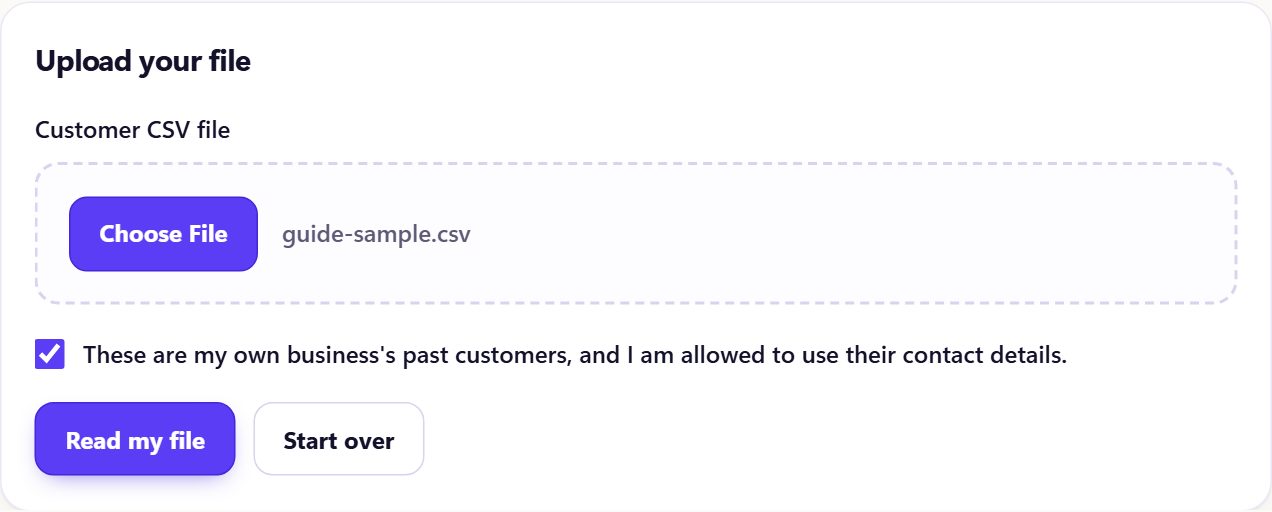
- Click Add customers in the step bar.
- Click Choose File and pick your CSV file.
- Tick “These are my own business’s past customers…” and click Read my file.
Match your columns
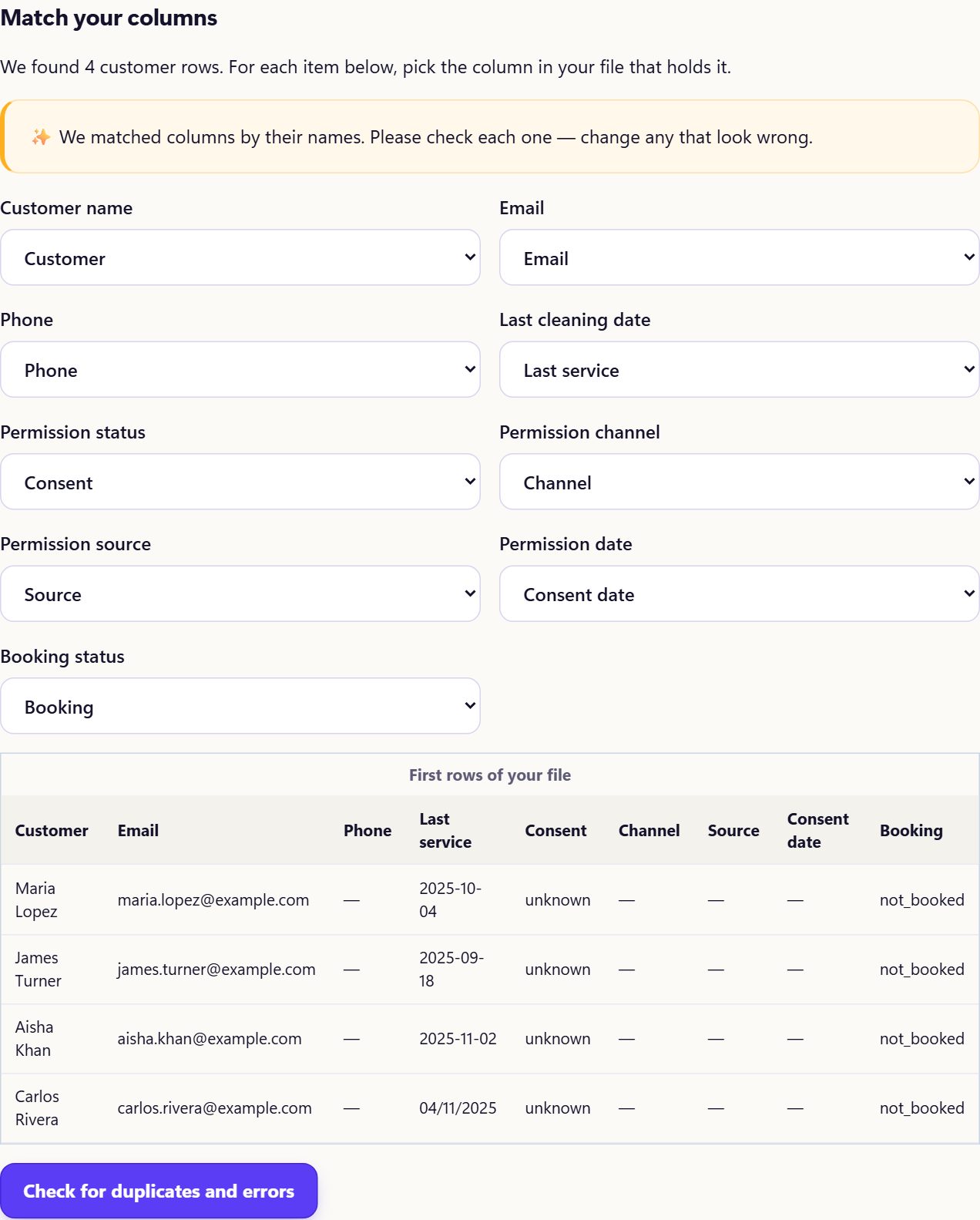
Zylenta matches your columns by their names and shows a yellow note. Check each box: it should show the column from your file that holds that information. If something is wrong, pick the right column from the list. Use “— Not in my file —” for anything you don’t have.
Check and save
- Click Check for duplicates and errors. You will see how many customers are ready and how many are skipped.
- Skipped rows are duplicates, customers you already saved, or rows with a problem (for example a date written the wrong way). Each one says why. You can fix the file and upload it again later.
- Tick “I approve saving only these reviewed new customers”.
- Tick “The last cleaning dates in my file are real, completed cleanings” — this is how Zylenta knows when each customer is due.
- Click Save reviewed customers. A green box confirms how many were saved, with a button to the next step.
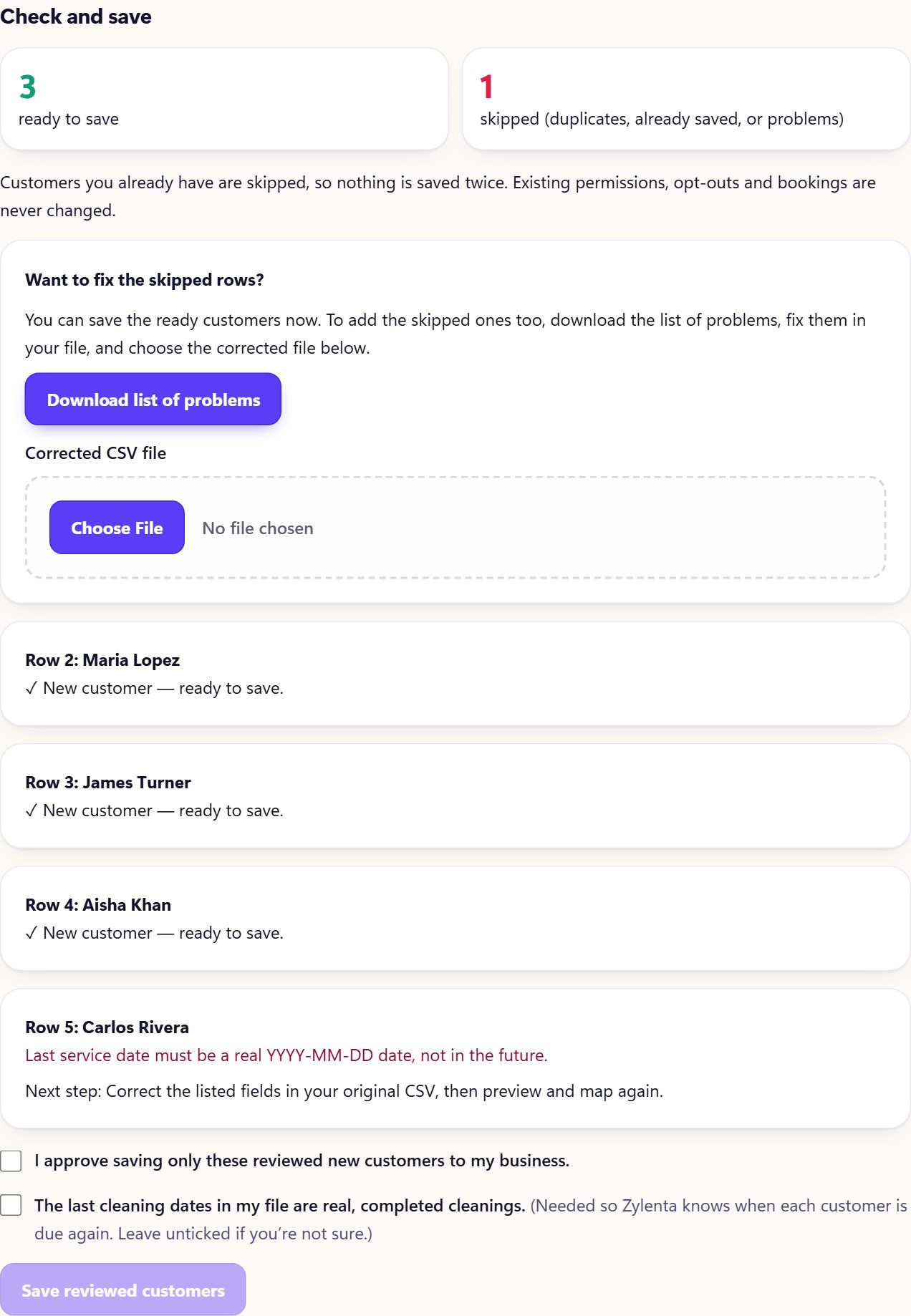
Tip: Uploading the same file twice is safe — customers you already have are skipped, never duplicated.
5. Get customers ready
A customer can receive a reminder when they are due, you have recorded their permission, and you have set their timezone.
- Click Get them ready in the step bar.
- Under “How often do customers usually book a cleaning?” choose a number of months, for example Every 12 months. Your customer list appears straight away. The app remembers your choice on this device.
- Under Reminder by choose Email or Text.
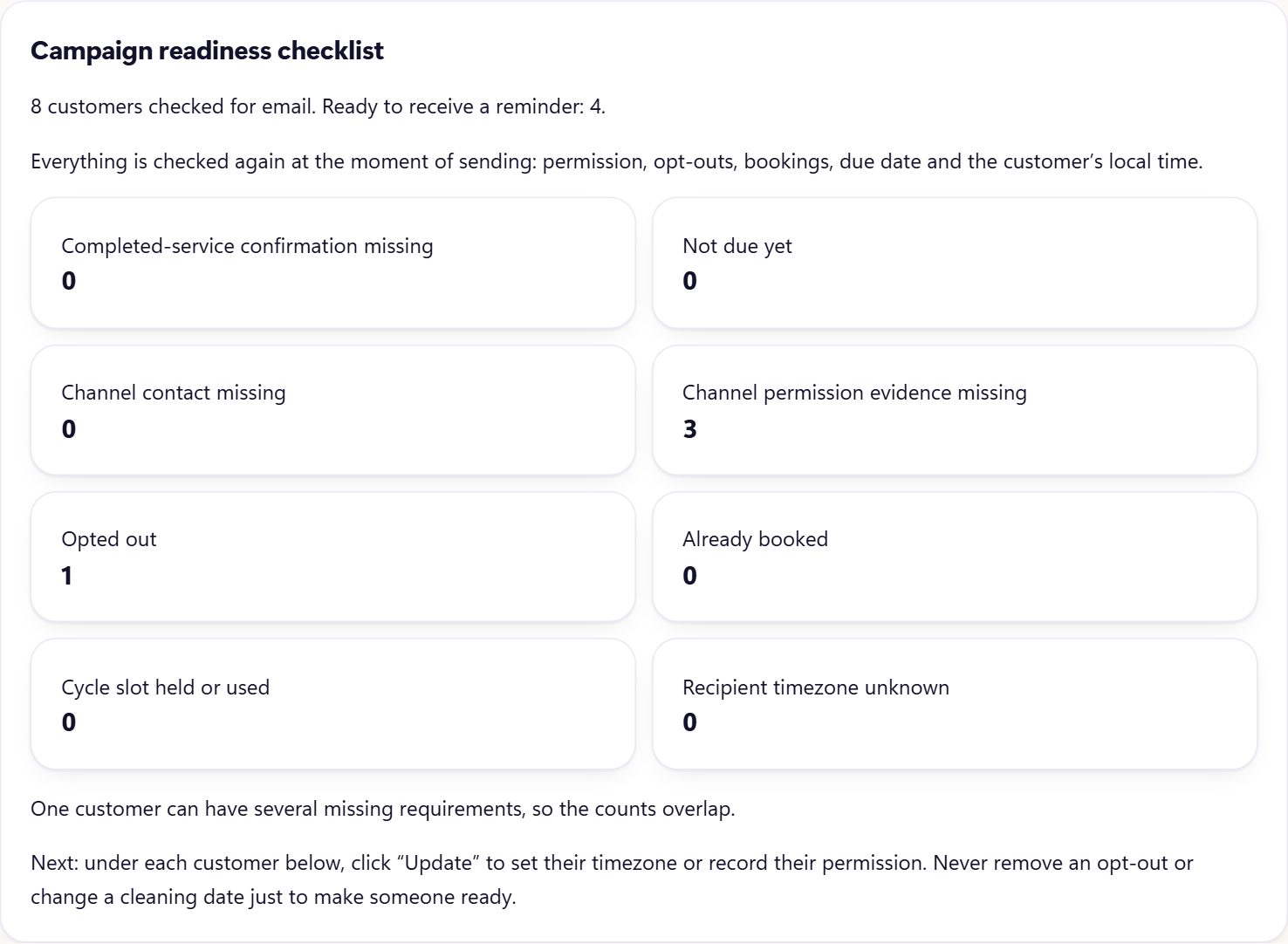
Update each customer
Under each customer, click Update [name]. Do these two things:
- Set their timezone: choose Set their timezone, pick the timezone where the customer lives, click Save.
- Record their permission: choose Record their permission, pick Email or Text, then answer the four questions — how they agreed, what they agreed to, where the proof is kept and when. Tick the confirmation box and click Save.
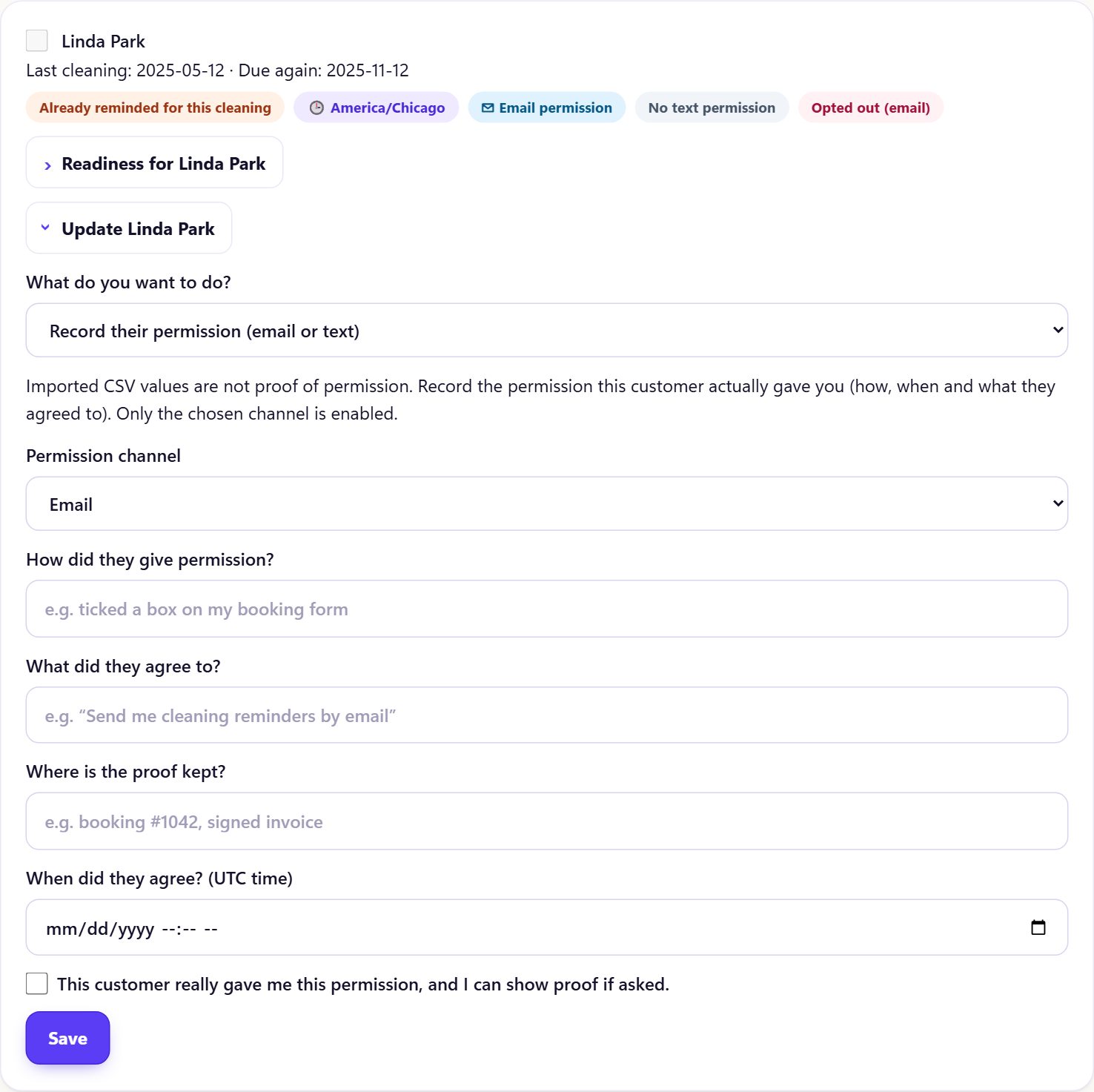
When a customer shows the green label “Ready for a reminder”, they can be selected on the Send reminders page.
Important: Only record permission the customer really gave you. If a customer asks you to stop, choose They asked to stop — opt them out.
6. Send reminder emails
You approve every message. Emails then go out automatically at a good time.
Turn on automatic emails (first time only)
At the top of Send reminders you will see whether automatic emails are ON or OFF. If you see an orange box saying Automatic emails are OFF, click Turn on automatic emails. While they are off, approved emails wait and nothing is sent.

Prepare a campaign
- Choose the same Service interval (months) as before and set Channel to Email (sent automatically).
- Check the Email subject. It starts as Time for your next carpet cleaning — change it if you like.
- Click Send now to send as soon as possible, or choose a date and time.
- Click Use 9 AM – 7 PM (recommended). Messages only go out inside these hours in each customer’s own timezone.
- Read Your message. A friendly message is already written for you. Words in curly brackets —
{first_name},{business_name}and{booking_url}— are filled in for each customer. Keep{booking_url}in the message. - Tick the customers you want to remind (only ready customers can be ticked), then click Prepare campaign preview.
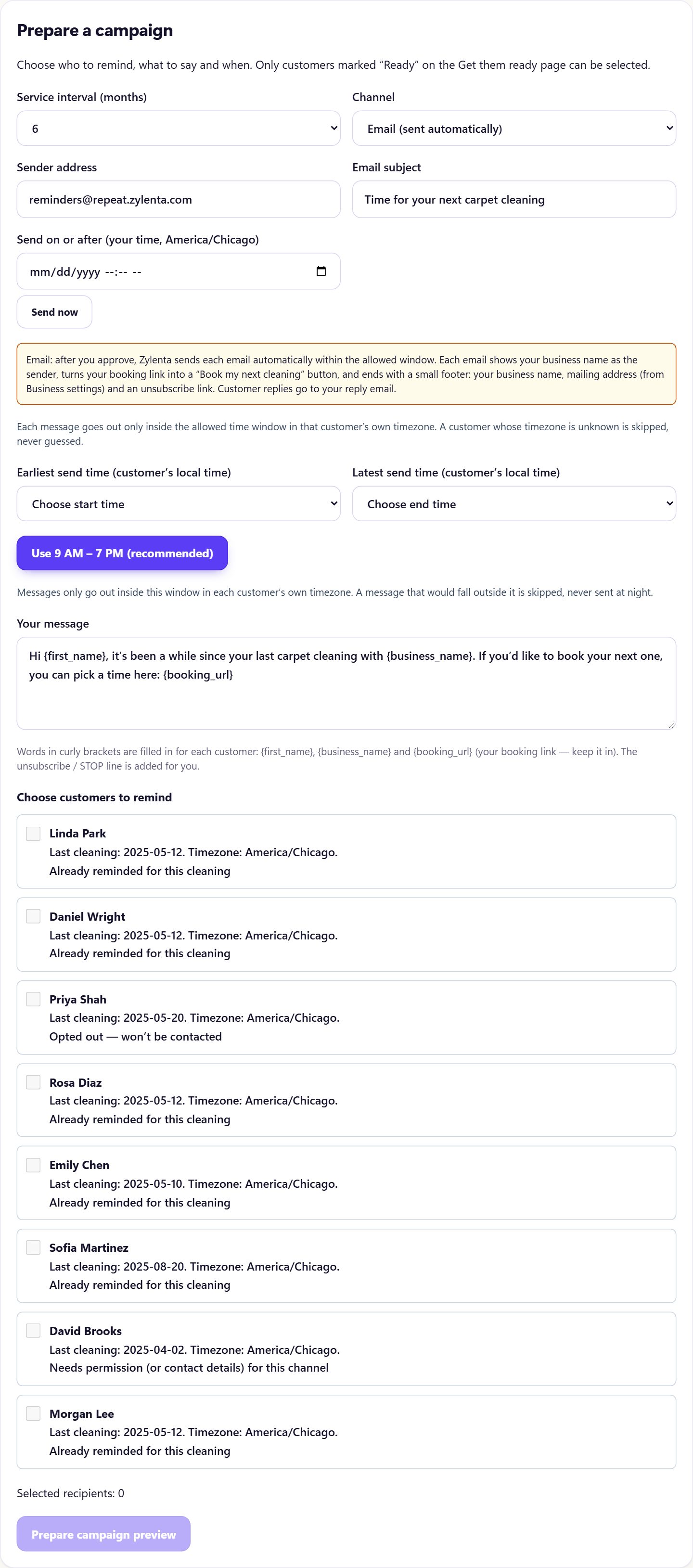
Preview and approve
- Under Saved campaign operations you will see every final email exactly as it will be sent — with the unsubscribe link added. If you see Finish preparing draft, click it first.
- Read the messages. Then tick “I reviewed every final message for this campaign” and click Approve and send these emails.
That’s it. Within a few minutes (inside your allowed hours) the emails are sent. Your first approved email campaign starts your free 30-day trial.
Tip: Every email includes your business name, a “Book my next cleaning” button, your mailing address and an unsubscribe link — added for you.
7. Send texts from your phone
Texts come from your own number, so customers recognise you.
- On Send reminders, set Channel to SMS from my phone and type your mobile number.
- Prepare and approve the campaign the same way as emails.
- Open the page on your phone. For each customer click Prepare text, then Open my messages app. Your phone opens a ready-made text — press send.
- Back in Zylenta, click I sent it (or I did not send it). You can also Skip this customer.
Important: Replies come to your phone. If anyone replies STOP, record the opt-out straight away on Get them ready.
8. After you send
Watch what happens and keep your list tidy.
- Your results at the top of Send reminders shows emails sent, delivered and bounced, texts you sent, and customers marked booked.
- When a customer books, open Get them ready → Update [name] → Mark as booked. Pending reminders to them stop.
- When a customer unsubscribes or an email bounces, Zylenta stops reminders to them automatically.
- After you clean for a customer again, choose Record a new completed cleaning so they become due again in the future.
Each customer gets at most one reminder per service cycle, across email and text together.
9. Your data
Your data belongs to you.
- Open Your data in the step bar.
- Download JSON export or Download CSV export to keep a copy of your records.
- To delete a customer’s data, choose them, click Check existing request and preview, type the confirmation word and confirm. Reminders to them stop immediately.
10. Problems and tips
I didn’t get the confirmation email
Check Spam and Promotions. Wait a few minutes and check that you typed the address correctly. If it still hasn’t arrived, email us and we’ll help.
A row was skipped when uploading
The review says why. Most common: the date isn’t written as year-month-day (2025-11-04), the email has a typo, or the customer is already saved.
A customer can’t be ticked on Send reminders
They are not ready yet. On Get them ready, look at their labels: they may be missing permission or timezone, may not be due yet, or may have opted out.
My approved emails haven’t gone out
Check that automatic emails are ON, that it is inside your allowed hours in the customer’s timezone, and give it up to 10 minutes. During the trial there is also a sending limit, shown on the page.
Need help?
Email hello@zylenta.com. Tell us what you clicked and what you saw — a screenshot helps.
Words explained
- CSV file — a simple table saved as text, one customer per line. Every spreadsheet program can create one.
- Service interval — how many months after a cleaning a customer becomes due again. You choose it.
- Due — the interval has passed since their last completed cleaning.
- Permission (consent) — the customer agreed to receive reminders on that channel (email or text).
- Opt-out / unsubscribe — the customer asked to stop. They won’t get more reminders.
- Campaign — one batch of reminders you prepare and approve together.
- Timezone — the customer’s local time, so messages arrive at a sensible hour.
- Bounce — an email that couldn’t be delivered, usually a wrong or closed address.
You’re ready. Send your first reminder today.
Start your free 30-day trial. No card needed — set up in about 10 minutes.